# fast.ai Lesson 1: Getting started
**URL:** https://vip.studycamp.tw/t/fastai-lesson-1-getting-started/6332
**Category:** fast.ai
**Created:** [2023年八月11日 09:09 UTC](https://vip.studycamp.tw/t/fastai-lesson-1-getting-started/6332 "2023-08-11T09:09:14Z")
**Posts on this page:** 1
**Page:** 1
### Author:  [@sky](https://vip.studycamp.tw/u/sky)
#### Post date: [2023年八月11日 09:09 UTC](https://vip.studycamp.tw/t/fastai-lesson-1-getting-started/6332/1 "2023-08-11T09:09:15Z")
## 行前提示
資料這麼多(說明、YouTube, Jupyter Notebook, Book),到底要從哪裡開始呢?
其實在 **[第一堂課的說明](https://course.fast.ai/Lessons/lesson1.html)** 中,寫得很清楚。
1. 觀看影片。
2. 利用 Jupyter Notebook 練習(自己找題目更佳)。
3. **[看書](https://course.fast.ai/Resources/book.html)**。
> 每節課都會在影片下方,告訴你需要閱讀哪一章,本課為第 1 章。
### 看影片
**[播放列表請點我](https://www.youtube.com/watch?v=8SF_h3xF3cE&list=RDCMUCX7Y2qWriXpqocG97SFW2OQ&start_radio=1)**
### 影片所使用的 ipynb
> ipynb:Jupyter Notebook 副檔名
以下兩個連結,是第一堂課會使用到的 Jupyter Notebook。
你可以在 kaggle 中直接開啟講師 Jeremy Howard 的專案。只要登入 kaggle,就可以複製到你的專案,編輯、執行。
#### 本課程所搭配的 ipynb
> **[Practical Deep Learning for Coders, Chapter 1](https://www.kaggle.com/code/jhoward/practical-deep-learning-for-coders-chapter-1)**
>
> Explore and run machine learning code with Kaggle Notebooks | Using data from No attached data sources
#### Jupyter Notebook 使用教學
> **[Jupyter Notebook 101](https://www.kaggle.com/code/jhoward/jupyter-notebook-101)**
>
> Explore and run machine learning code with Kaggle Notebooks | Using data from No attached data sources
你也可以使用別的工具開啟 Jupyter Notebook,例如講師舉的例子 [**Paperspace Gradient**](https://console.paperspace.com/signup?R=lg6rnx) 、在電腦中安裝,或是使用 **[google Colab](https://colab.research.google.com/)**。
#### 老師上課講義
> **[Google Colab](https://colab.research.google.com/github/fastai/course22/blob/master/slides/birds.ipynb)**
#### 如何使用 google Colab 開啟 ipynb?
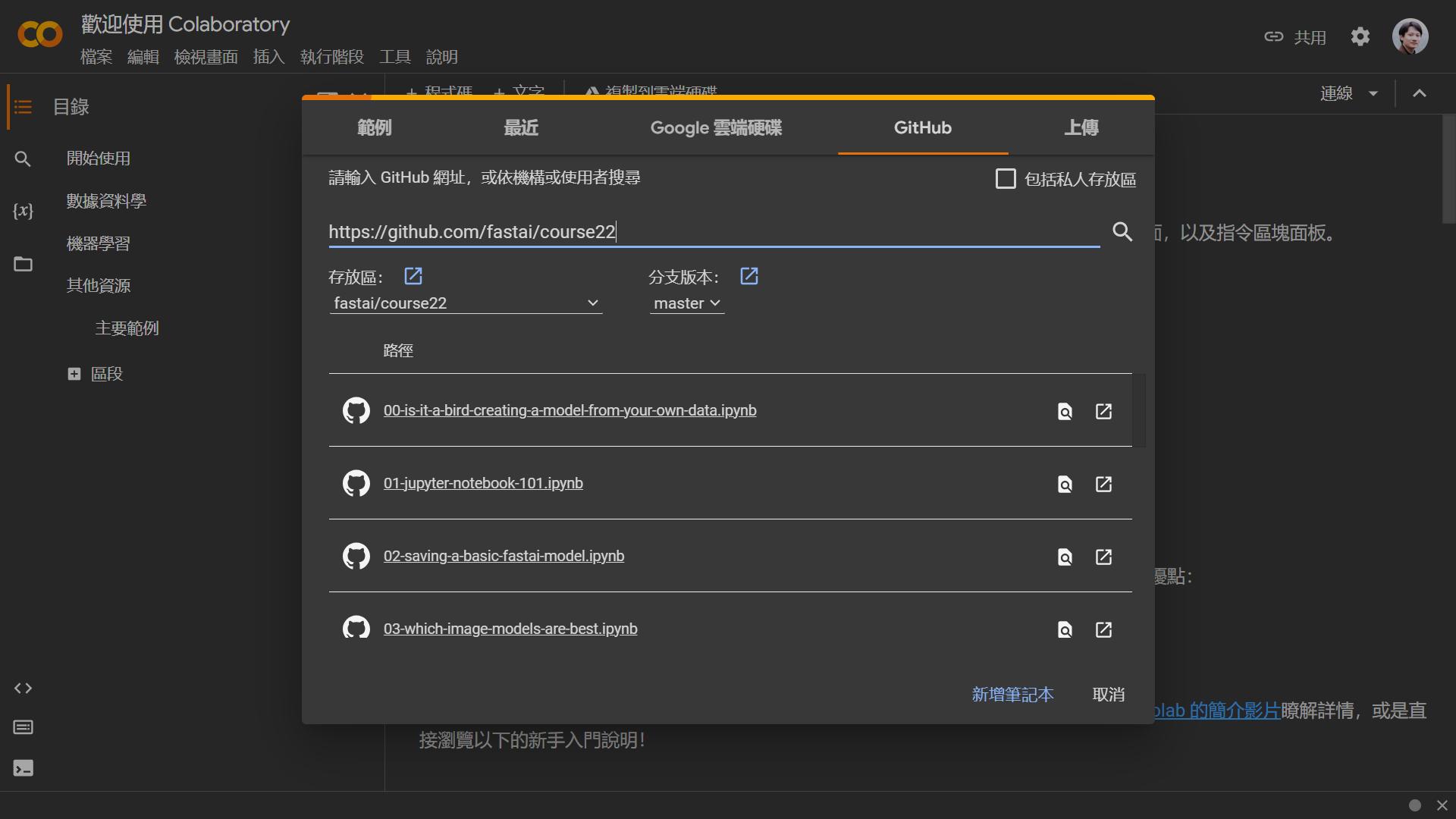
- 登入 **[google Colab](https://colab.research.google.com/)**,選擇選單 **檔案** \> **開啟筆記本** (或快捷鍵 Ctrl + O)
- 選擇上方五選單中的第四個: **GitHub**
- 然後輸入以下網址:`https://github.com/fastai/course22` 就會出現以下畫面。
- 你可以用滑鼠右鍵,點擊各 ipynb 最右側的 ↗(在分頁中開啟筆記本),一次開好幾個更方便。
#### google Colab 英翻中
使用 google Colab 開啟 ipynb 的好處是: **可以直接英翻中** 。
測試迴圈範例(“鳥”和“森林”照片各 200 個),時間都是兩分鐘。
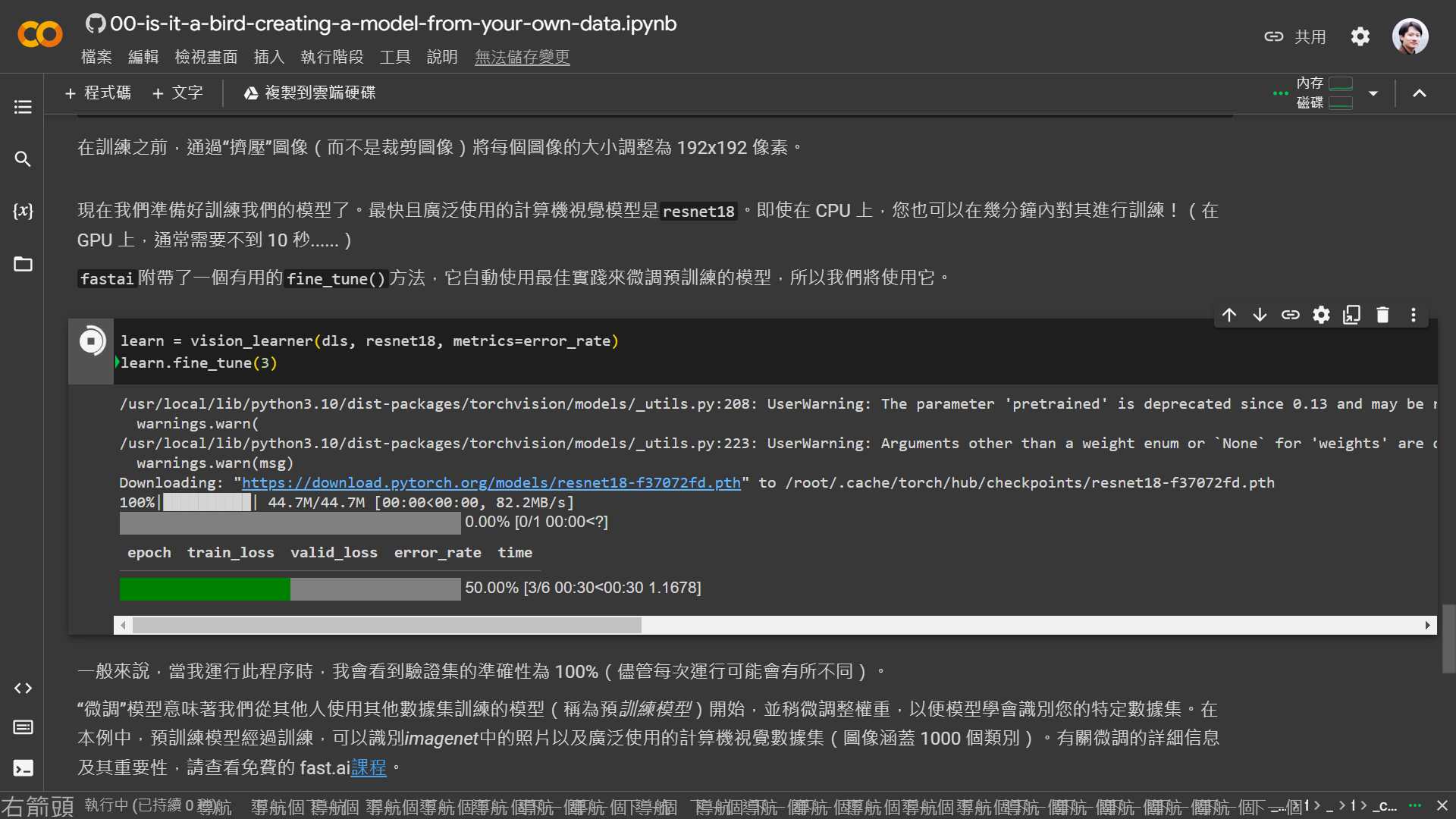
使用 google Colab 開啟 ipynb 的其他好處:
1. 執行到哪一行,隨時可見。
2. 執行完成,顯示執行該段程式所需時間。
但 kaggle 在某些情形下,執行速度比較快,例如下面這段程式。google Colab 花了 5分鐘,但 kaggle 只要 8秒。
```python
learn = vision_learner(dls, resnet18, metrics=error_rate)
learn.fine_tune(3)
```
google Colab 執行結果:
```python
epoch train_loss valid_loss error_rate time
0 0.768702 0.205682 0.106796 01:02
epoch train_loss valid_loss error_rate time
0 0.220647 0.032764 0.019417 01:26
1 0.119991 0.021804 0.009709 01:24
2 0.092784 0.022100 0.009709 01:22
```
kaggle 執行結果:
```python
epoch train_loss valid_loss error_rate time
0 0.797839 1.428837 0.363636 00:01
epoch train_loss valid_loss error_rate time
0 0.124135 0.199831 0.060606 00:01
1 0.088218 0.041353 0.000000 00:01
2 0.076420 0.051896 0.030303 00:01
```
### 補充:YouTube 使用
可能有些朋友,對 YouTube 使用不是很熟悉。
在影片的說明處,有各小段主題的時間,直接點選該時段,就可以播放該時段影片,非常方便。
比方說,我在第一次快速瀏覽完影片後,第二次開始前,想找講師在 Kaggle 的連結。這時只要展開影片說明,搜尋 Kaggle 關鍵字,很快就找到所需的資料。

YouTube 顯示轉錄稿

* * *
## 本節課目標
> (說服你)使用 fast.ai 完成模型訓練是多麼輕鬆容易啊
1. 取得 **資料集** :使用 DuckDuckGo 搜索及下載「鳥類」和「森林」照片。
2. **訓練** :將前述 **資料集** 切割為 **訓練集** 和 **驗證集** ,選擇模型(及設定參數)對 **訓練集** 進行訓練。
3. **驗證** :用訓練結果,對 **驗證集** 進行驗證,看看它是否能正確辨識。
4. **結束或重來** :成功辨識,任務完成;如果成功辨識率不高,回到步驟 2(少數情形甚至步驟 1)。
> 微調 **預訓練的神經網絡** 以識別這兩組(鳥類 & 森林)。
* * *
### 1. 使用 DDG 搜索「鳥類照片」
```python
from duckduckgo_search import ddg_images
from fastcore.all import *
def search_images(term, max_images=30):
print(f"Searching for '{term}'")
return L(ddg_images(term, max_results=max_images)).itemgot('image')
```
這裡 `return L` 的 `L`,我找不到相關說明,結果問 ChatGPT 反而馬上獲得解答(其它都很簡單,只需看 5 即可):
透過 DuckDuckGo 搜索引擎的 API 來搜尋圖片並取得相關的圖片連結。以下是程式碼的詳細說明:
1. `from duckduckgo_search import ddg_images`: 此行程式碼匯入了一個名為 `ddg_images` 的函式,該函式來自名為 `duckduckgo_search` 的套件,用於進行DuckDuckGo 搜索。
2. `from fastcore.all import *`: 這行程式碼匯入了 `fastcore` 套件中的所有內容。`fastcore` 是一個 Python 工具庫,提供了一些實用的工具函式和資料結構,有助於簡化程式碼的撰寫。
3. `def search_images(term, max_images=30):` : 定義了一個名為 `search_images` 的函式,該函式接受兩個參數:`term` 和 `max_images`,其中 `term` 是要搜尋的關鍵字,`max_images` 是要搜尋的最大圖片數量(預設為30張)。回傳值:class L(包裝 ddg\_images 回傳值,加上好用 methods)。
4. `print(f"Searching for '{term}'")`: 在搜尋開始時,輸出一段訊息,告知正在搜尋的關鍵字。
5. `return L(ddg_images(term, max_results=max_images)).itemgot('image')`:
這段程式碼是用來通過 DuckDuckGo 搜索引擎搜尋圖片並獲取圖片連結的工具函式。您可以呼叫 `search_images` 函式,並傳入關鍵字以及需要的圖片數量,然後它會返回相應數量的圖片連結列表。
#### L 的官方文件:
> **[list - A tour of fastcore – fastcore](https://fastcore.fast.ai/tour.html#l)**
>
> Here’s a (somewhat) quick tour of a few higlights from fastcore. | Python supercharged for fastai development
* * *
### ddg\_images 文件
我放了三個管道的說明:ChatGPT, PyPI & GitHub
#### 1. ChatGPT
> **ChatGPT:說明 & 範例**
>
> #### ddg\_images 參數
>
> - `term`(必填):字串,要在 DuckDuckGo 搜索引擎中搜索的關鍵字。
>
> - `max_results`(選填):整數,要獲取的最大搜尋結果數,預設值為 30。
>
> #### ddg\_images 回傳值
>
> `ddg_images` 函式的回傳值是一個列表,該列表包含了搜尋結果中的圖片相關資訊。
>
> 每個列表中的元素都是一個字典,該字典描述了一張圖片的相關屬性,可能包括以下一些資訊:
>
> - `title`:圖片的標題或描述。
>
> - `image`:圖片的URL連結。
>
> - `url`:原始網頁的URL,可能包含有關該圖片的更多資訊。
>
> - `width`:圖片的寬度(以像素為單位)。
>
> - `height`:圖片的高度(以像素為單位)。
>
> - `thumbnail`:縮略圖的URL連結。
>
> 您可以使用這些資訊來進一步處理和顯示搜尋結果中的圖片。例如,在您的程式碼中,`return L(ddg_images(term, max_results=max_images)).itemgot('image')` 部分使用 `.itemgot('image')` 從每個搜尋結果中提取出圖片的URL連結,這意味著您的 `search_images` 函式將返回一個列表,其中包含了所有搜尋結果中的圖片URL連結。
#### 2. [PyPI](https://pypi.org/project/duckduckgo-search/1.1/)
> **[Client Challenge](https://pypi.org/project/duckduckgo-search/1.1/)**
> **PyPI:說明 & 範例**
>
> ```python
> from duckduckgo_search import ddg_images
>
> def ddg_images(keywords, region='wt-wt', safesearch='Moderate', time=None, size=None,
> color=None, type_image=None, layout=None, license_image=None, max_results=100):
> ''' DuckDuckGo images search
> keywords: keywords for query;
> safesearch: On (kp = 1), Moderate (kp = -1), Off (kp = -2);
> region: country of results - wt-wt (Global), us-en, uk-en, ru-ru, etc.;
> time: Day, Week, Month, Year;
> size: Small, Medium, Large, Wallpaper;
> color: color, Monochrome, Red, Orange, Yellow, Green, Blue, Purple, Pink, Brown, Black, Gray, Teal, White;
> type_image: photo, clipart, gif, transparent, line;
> layout: Square, Tall, Wide;
> license_image: any (All Creative Commons), Public (Public Domain), Share (Free to Share and Use),
> ShareCommercially (Free to Share and Use Commercially), Modify (Free to Modify, Share, and Use),
> ModifyCommercially (Free to Modify, Share, and Use Commercially);
> max_results: number of results, maximum ddg_images gives out 1000 results.
> '''
>
> ```
>
> 傳回值:各 dictionary 組成的 list
>
> ```python
> [{'height': image height,
> 'image': image url,
> 'source': image source,
> 'thumbnail': image thumbnail,
> 'title': image title,
> 'url': url where the image was found,
> 'width': image width },
> ...
> ]
>
> ```
>
> 範例
>
> ```python
> from duckduckgo_search import ddg_images
>
> keywords = 'world'
> r = ddg_images(keywords='world', region='br-pt', safesearch='Off', time='Year', size='Wallpaper',
> color='Green', type_image='Photo',layout='Square', license_image='Public', max_results=500)
> print(r)
>
> ## 以下為輸出 =====>
> [
> {'height': 1920, 'image': 'https://publicdomainpictures.net/pictures/110000/velka/arid-world.jpg', 'source': 'Bing', 'thumbnail': 'https://tse4.mm.bing.net/th?id=OIP.kCgFTRlCKn04iljW31QvNQHaHa&pid=Api', 'title': 'Arid World Free Stock Photo - Public Domain Pictures', 'url': 'https://www.publicdomainpictures.net/view-image.php?image=108025&picture=arid-world', 'width': 1920},
>
> {'height': 2400, 'image': 'https://www.goodfreephotos.com/albums/vector-images/kawaii-earth-vector-clipart.png', 'source': 'Bing', 'thumbnail': 'https://tse4.mm.bing.net/th?id=OIP.Sq1GMsUVFlekkoof_wwx7wHaHa&pid=Api', 'title': 'Kawaii Earth Vector Clipart image - Free stock photo ...', 'url': 'https://www.goodfreephotos.com/public-domain-images/kawaii-earth-vector-clipart.png.php', 'width': 2400},
> ...
> ]
>
> ```
#### **3. [GitHub duckduckgo\_search](https://github.com/deedy5/duckduckgo_search)**
> **[GitHub - deedy5/ddgs: DDGS | Dux Distributed Global Search. A metasearch...](https://github.com/deedy5/ddgs#3-images---image-search-by-duckduckgocom)**
>
> DDGS | Dux Distributed Global Search. A metasearch library that aggregates results from diverse web search services
> **GitHub:說明 & 範例**
>
> **說明:**
>
> ```python
> def images(
> keywords: str,
> region: str = "wt-wt",
> safesearch: str = "moderate",
> timelimit: Optional[str] = None,
> size: Optional[str] = None,
> color: Optional[str] = None,
> type_image: Optional[str] = None,
> layout: Optional[str] = None,
> license_image: Optional[str] = None,
> ) -> Iterator[Dict[str, Optional[str]]]:
> """DuckDuckGo images search. Query params: https://duckduckgo.com/params
>
> Args:
> keywords: keywords for query.
> region: wt-wt, us-en, uk-en, ru-ru, etc. Defaults to "wt-wt".
> safesearch: on, moderate, off. Defaults to "moderate".
> timelimit: Day, Week, Month, Year. Defaults to None.
> size: Small, Medium, Large, Wallpaper. Defaults to None.
> color: color, Monochrome, Red, Orange, Yellow, Green, Blue,
> Purple, Pink, Brown, Black, Gray, Teal, White. Defaults to None.
> type_image: photo, clipart, gif, transparent, line.
> Defaults to None.
> layout: Square, Tall, Wide. Defaults to None.
> license_image: any (All Creative Commons), Public (PublicDomain),
> Share (Free to Share and Use), ShareCommercially (Free to Share and Use Commercially),
> Modify (Free to Modify, Share, and Use), ModifyCommercially (Free to Modify, Share, and
> Use Commercially). Defaults to None.
>
> Yields:
> dict with image search results.
>
> """
>
> ```
>
> **範例:**
>
> ```python
> from duckduckgo_search import DDGS
>
> with DDGS() as ddgs:
> keywords = 'butterfly'
> ddgs_images_gen = ddgs.images(
> keywords,
> region="wt-wt",
> safesearch="off",
> size=None,
> color="Monochrome",
> type_image=None,
> layout=None,
> license_image=None,
> )
> for r in ddgs_images_gen:
> print(r)
>
> ```
* * *
### 2. 使用 DuckDuckGo 搜尋及下載圖片
示範一:取得單一圖片網址
```python
urls = search_images('bird photos', max_images=1)
urls[0]
## 輸出 =====>
Searching for 'bird photos'
'http://hdqwalls.com/download/1/colorful-parrot-bird.jpg'
```
示範二:下載本圖片並顯示
```python
from fastdownload import download_url
dest = 'bird.jpg'
download_url(urls[0], dest, show_progress=False)
from fastai.vision.all import *
im = Image.open(dest)
im.to_thumb(256,256)
```
示範三:換森林這個主題(程式略)
示範四:以上測試都沒問題,所以我們下載「鳥」和「森林」各200張圖片(其實是各 200\*3),當作訓練和驗證的資料。(記得下載後要檢查)
> 提醒:max\_images=200(預設值)
```python
searches = 'forest','bird'
path = Path('bird_or_not')
from time import sleep
for o in searches:
dest = (path/o)
dest.mkdir(exist_ok=True, parents=True)
download_images(dest, urls=search_images(f'{o} photo'))
sleep(10) # Pause between searches to avoid over-loading server
download_images(dest, urls=search_images(f'{o} sun photo'))
sleep(10)
download_images(dest, urls=search_images(f'{o} shade photo'))
sleep(10)
resize_images(path/o, max_size=400, dest=path/o)
```
#### download\_images 說明
> by ChatGPT
`download_images` 函式位於 `fastai.vision.utils` 模組中,用於從網路上下載圖片並儲存在指定的目錄中,以供後續的資料集建立和訓練使用。
以下是該函式的詳細說明:
**函式:**
`download_images(dest, url_file=None, urls=None, max_pics=1000, n_workers=8, timeout=4)`
**參數:**
- `dest`(必須):一個字串,表示要儲存下載圖片的目錄路徑。
- `url_file`(可選):一個字串,表示包含圖片URL的文本檔案的路徑。每一行都應該是一個圖片的URL。
- `urls`(可選):一個清單,包含圖片的URL。如果提供了 `url_file`,則此參數會被忽略。
- `max_pics`(可選):一個整數,表示要下載的最大圖片數量。默認為1000張。
- `n_workers`(可選):一個整數,表示用於下載的並行工作數量。默認為8個工作。
- `timeout`(可選):一個浮點數,表示下載單個圖片的最大超時時間(秒)。默認為4秒。
**功能:**
`download_images` 函式可以根據提供的圖片URL列表,從網路上下載圖片並儲存在指定的目錄中。您可以通過提供 `url_file` 或 `urls` 參數來指定要下載的圖片URL。如果您提供了 `url_file`,則 `urls` 參數會被忽略。
函式會通過多個並行工作來同時下載多個圖片,從而加快下載速度。此外,還可以設定最大下載圖片數量、超時時間等。
**範例:**
以下是使用 `download_images` 函式的範例程式碼:
```python
from fastai.vision.utils import download_images
# 設定下載圖片的目錄
download_path = '/path/to/downloaded/images'
# 使用圖片URL檔案下載圖片
url_file_path = '/path/to/url_file.txt'
download_images(download_path, url_file=url_file_path, max_pics=50, n_workers=4)
# 或者直接提供圖片URL清單下載圖片
image_urls = [
'https://example.com/image1.jpg',
'https://example.com/image2.jpg',
# ...
]
download_images(download_path, urls=image_urls, max_pics=30, n_workers=2)
```
請確保將 `'/path/to/downloaded/images'` 和 `'/path/to/url_file.txt'` 替換為您的實際路徑和檔案名稱。這樣,`download_images` 函式將會根據提供的URL從網路上下載圖片並存儲在指定的目錄中。
#### verify\_images 說明
> by ChatGPT
`verify_images` 用於驗證和過濾圖像檔案,確保它們是有效的圖像並符合特定的標準。這在建立和處理圖像資料集時非常有用,可以避免在訓練模型之前使用不適合的圖像。
以下是 `verify_images` 函式的詳細說明:
**函式:**
`verify_images(path, delete=False, max_size=None, dest=None, n_channels=3, interp=None, ext=None, recurse=False, **kwargs)`
**參數:**
- `path`(必須):一個字串,表示包含圖像檔案的目錄路徑。
- `delete`(可選):一個布林值,表示是否刪除無效的圖像。如果設置為 `True`,則無效的圖像將被刪除。預設為 `False`。
- `max_size`(可選):一個整數,表示允許的最大圖像大小(以像素為單位)。超過此大小的圖像將被標記為無效。默認為 `None`,表示不限制圖像大小。
- `dest`(可選):一個字串,表示驗證後的圖像應該儲存的目錄路徑。如果不提供,則驗證後的圖像將保留在原始目錄中。
- `n_channels`(可選):一個整數,表示預期的圖像通道數。默認為3,表示預期是彩色圖像。
- `interp`(可選):一個字串,表示用於重新取樣圖像的插值方法。可以是 `"nearest"`、`"bilinear"`、`"bicubic"` 或 `None`。默認為 `None`。
- `ext`(可選):一個字串或清單,表示要驗證的圖像檔案的擴展名。如果提供,只有指定的擴展名的圖像才會被驗證。
- `recurse`(可選):一個布林值,表示是否遞迴地驗證子目錄中的圖像。默認為 `False`。
**功能:**
`verify_images` 函式可以根據提供的參數對圖像進行驗證,過濾掉無效或不適當的圖像。它可以檢查圖像的大小、通道數、格式等,並可選擇性地刪除無效的圖像。您可以指定不同的參數來達到不同的驗證目的。
**範例:**
以下是使用 `verify_images` 函式的範例程式碼:
```python
from fastai.vision.utils import verify_images
# 驗證指定目錄下的圖像,並刪除無效的圖像
path = '/path/to/image/directory'
verify_images(path, delete=True, max_size=1024, n_channels=3)
# 驗證指定目錄下的圖像,並將有效的圖像儲存到新的目錄
dest_path = '/path/to/valid/images'
verify_images(path, dest=dest_path, max_size=800, n_channels=3, interp='bicubic')
# 遞迴驗證指定目錄下的所有子目錄中的圖像
verify_images(path, recurse=True, max_size=1200, ext=['.jpg', '.png'])
```
請注意,將 `'/path/to/image/directory'`、`'/path/to/valid/images'` 替換為實際的目錄路徑,並根據需求調整其他參數。這樣,`verify_images` 函式將會根據指定的參數對圖像進行驗證和過濾,以確保符合需求。
#### fastai - Vision utils 官方文件
> 其中包含 download\_images & resize\_images
> **[Vision utils – fastai](https://docs.fast.ai/vision.utils.html)**
>
> Some utils function to quickly download a bunch of images, check them and pre-resize them
#### download\_images
> download\_images (dest, url\_file=None, urls=None, max\_pics=1000, n\_workers=8, timeout=4, preserve\_filename=False)
Download images listed in text file `url_file` to path `dest`, at most `max_pics`.
#### resize\_image
> resize\_image (file, dest, src=‘.’, max\_size=None, n\_channels=3, ext=None, img\_format=None, resample=\, resume=False, \*\*kwargs)
Resize file to dest to max\_size.
#### verify\_images
> verify\_image (fn)
Confirm that `fn` can be opened.
* * *
### 3. 微調「預訓練的神經網絡」以識別資料
> **確認資料集沒問題** (所有訓練都會做這個步驟)
>
> 有些照片可能無法正確下載,導致模型訓練失敗,必須檢查後刪除。
```python
failed = verify_images(get_image_files(path))
failed.map(Path.unlink)
len(failed) # 對照於 len(list)
## 輸出 =====>
7
```
順便看看 failed 資料型態(verify\_images 回傳值):verify\_images 回傳資料型態是 class L。
```python
type(failed)
## 輸出 =====>
fastcore.foundation.L
```
> **資料集 切分** (所有訓練都會做這個步驟)
>
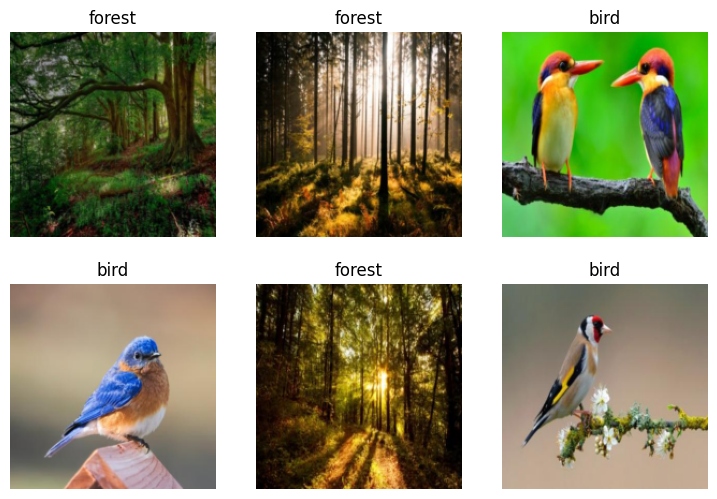
> 為了訓練模型,我們需要 `DataLoaders` ,它是一個包含 **訓練集** (用於創建模型的圖像)和 **驗證集** (用於檢查模型準確性的圖像 - 在訓練期間不使用)的對象。
>
> `fastai` 可以使用 `DataBlock` 輕鬆創建,並從中查看範例圖像。
```python
dls = DataBlock(
blocks=(ImageBlock, CategoryBlock),
get_items=get_image_files,
splitter=RandomSplitter(valid_pct=0.2, seed=42),
get_y=parent_label,
item_tfms=[Resize(192, method='squish')]
).dataloaders(path)
dls.show_batch(max_n=6)
```
#### `DataBlock` 參數的含義:
```auto
blocks=(ImageBlock, CategoryBlock),
```
模型的輸入是圖像,輸出是類別(在本例中為“鳥”或“森林”)。
```auto
get_items=get_image_files,
```
搜尋模型的所有輸入,使用 `get_image_files` 函數(它返回路徑中所有圖像文件的列表)。
```auto
splitter=RandomSplitter(valid_pct=0.2, seed=42),
```
將數據隨機分為訓練集和驗證集,使用 20% 的數據作為驗證集。
```auto
get_y=parent_label,
```
標籤(`y` 值)是每個文件的名稱 `parent` (即它們所在的文件夾的名稱,將是_bird_ 或_forest_ )。
```auto
item_tfms=[Resize(192, method='squish')]
```
在訓練之前,調整圖片尺寸 resize(而不是裁剪圖像 crop),將每個圖像的大小調整為 192x192 像素。
> **老師說明逐字稿(並沒有)**
>
> ```python
> dls = DataBlock(
> blocks=(ImageBlock, CategoryBlock), # 定義數據塊類型,圖像和類別標籤
> get_items=get_image_files, # 取得所有圖像檔案的函式
> splitter=RandomSplitter(valid_pct=0.2, seed=42), # 隨機切分數據集,設定驗證集佔比和種子
> get_y=parent_label, # 取得標籤的函式,這裡使用父資料夾名稱作為標籤
> item_tfms=[Resize(192, method='squish')] # 圖像項目的轉換,將圖像調整大小
> ).dataloaders(path) # 創建 DataLoaders 對象,指定數據路徑
>
> dls.show_batch(max_n=6) # 顯示批次中的圖像
>
> ```
>
> 1-1. what kind of input do we have?
>
> > blocks = (ImageBlock, CategoryBlock), # 定義數據塊類型,圖像和類別標籤
> >
> > The input is image
>
> 1-2. what kind of output is there? what kind of label?
>
> > blocks = (ImageBlock, CategoryBlock), # 定義數據塊類型,圖像和類別標籤
> >
> > The output is a category
>
> > So that’s enough for fast.ai to know what kind of model to build for you.
>
> 2-1. what are the items in this model? what am I going to train from?
>
> > `get_items = get_image_files,` # 取得所有圖像檔案的函式
> > 回覆之前確認資料集:failed = verify\_images(get\_image\_files(path))
> >
> > It’s a function which returns a list of all of the image files in a path based on extension.
> >
> > Every time it’s going to try and find out what things to train from, it’s going to use that function.
>
> 1. 驗證集 “validation set.”
>
> > `splitter = RandomSplitter(valid_pct=0.2, seed=42),` # 隨機切分數據集,設定驗證集佔比和種子
> >
> > 資料集中,取 20% 出來當作驗證集
>
> 1. How do we know the correct label of a photo?
>
> > `get_y = parent_label,` # 取得標籤的函式,這裡使用父資料夾名稱作為標籤
> >
> > This is another function simply returns the parent folder of of a path.
>
> 1. Most computer vision architectures need all of your inputs as you train to be the same size
>
> > `item_tfms = [Resize(192, method='squish')]` # 圖像項目的轉換,將圖像調整大小
> >
> > Resize each of them to being 192 by 192 pixels.
>
> > Data loaders are pytorch iterates through to grab a bunch of your data at a time.
#### [DataBlock 官方文件](https://docs.fast.ai/data.block.html#datablock)
```python
DataBlock (blocks:list=None, dl_type:TfmdDL=None, getters:list=None,
n_inp:int=None, item_tfms:list=None, batch_tfms:list=None,
get_items=None, splitter=None, get_y=None, get_x=None)
```
Generic container to quickly build [`Datasets`](https://docs.fast.ai/data.core.html#datasets) and [`DataLoaders`](https://docs.fast.ai/data.core.html#dataloaders).
| | **Type** | **Default** | **Details** |
| --- | --- | --- | --- |
| blocks | list | None | One or more [`TransformBlock`](https://docs.fast.ai/data.block.html#transformblock)s |
| dl\_type | TfmdDL | None | Task specific [`TfmdDL`](https://docs.fast.ai/data.core.html#tfmddl), defaults to `block`’s dl\_type or[`TfmdDL`](https://docs.fast.ai/data.core.html#tfmddl) |
| getters | list | None | Getter functions applied to results of `get_items` |
| n\_inp | int | None | Number of inputs |
| item\_tfms | list | None | `ItemTransform`s, applied on an item |
| batch\_tfms | list | None | `Transform`s or [`RandTransform`](https://docs.fast.ai/vision.augment.html#randtransform)s, applied by batch |
| get\_items | NoneType | None | |
| splitter | NoneType | None | |
| get\_y | NoneType | None | |
| get\_x | NoneType | None | |
#### ChatGPT 說明 dataloaders
> 我們看看 ChatGPT 怎麼說明 dls: dataloaders。
```python
dls = DataBlock(
blocks=(ImageBlock, CategoryBlock), # 定義數據塊類型,圖像和類別標籤
get_items=get_image_files, # 取得所有圖像檔案的函式
splitter=RandomSplitter(valid_pct=0.2, seed=42), # 隨機切分數據集,設定驗證集佔比和種子
get_y=parent_label, # 取得標籤的函式,這裡使用父資料夾名稱作為標籤
item_tfms=[Resize(192, method='squish')] # 圖像項目的轉換,將圖像調整大小
).dataloaders(path) # 創建 DataLoaders 對象,指定數據路徑
dls.show_batch(max_n=6) # 顯示批次中的圖像
```
1. `blocks=(ImageBlock, CategoryBlock)`: 定義數據塊類型,這裡使用了 `ImageBlock` 和 `CategoryBlock`。`ImageBlock` 用於處理圖像,`CategoryBlock` 用於處理類別標籤。
2. `get_items=get_image_files`: 定義取得數據項目的函式,這裡使用 `get_image_files` 函式,該函式將返回指定目錄中的所有圖像檔案路徑。
3. `splitter=RandomSplitter(valid_pct=0.2, seed=42)`: 定義數據切分的方法,這裡使用隨機切分,將數據集切分成訓練集和驗證集,驗證集佔比為 20%,並指定種子為 42。
4. `get_y=parent_label`: 定義取得標籤的函式,這裡使用 `parent_label` 函式,它會使用父資料夾的名稱作為標籤。
5. `item_tfms=[Resize(192, method='squish')]`: 定義項目級別的轉換,這裡使用 `Resize` 函式將圖像調整到大小為 192x192,使用 `method='squish'` 選項來保持圖像的寬高比。
6. `.dataloaders(path)`: 使用剛剛定義的參數,創建 `DataLoaders` 對象,並指定數據路徑 `path`。
7.\* `dls.show_batch(max_n=6)`: 顯示批次中的圖像,最多顯示6個圖像。
#### ChatGPT 說明 `ImageBlock`
- **`ImageBlock(cls=PIL.Image.Image, *args,**kwargs)`**:
- **`ImageBlock(div=True, *args,**kwargs)`**:
- **`ImageBlock(cls=PIL.Image.Image, *args,**kwargs)`**:
- **`ImageBlock(batch_tfms=None, *args,**kwargs)`**:
- **`ImageBlock(type_tfms=None, *args,**kwargs)`**:
- **`ImageBlock(do_setup=True, batch_tfms=None, *args,**kwargs)`**:
#### ChatGPT 說明 xxxxBlock
> 感興趣的朋友請自行參考。
1. **`CategoryBlock(vocab=None, sort=True, add_na=False)`**:
- `vocab`:可以是類別標籤的索引列表,用於確定類別標籤的順序。如果未指定,將根據數據中的唯一類別標籤創建一個詞彙表。
- `sort`:如果設置為 `True`,則會按照索引的順序對類別標籤進行排序。默認為 `True`。
- `add_na`:如果設置為 `True`,將添加一個特殊的 “NA”(Not Available)標籤,用於處理缺失的標籤。默認為 `False`。
1. **`MultiCategoryBlock(vocab=None, sort=True, add_na=False)`**:
- 用於多標籤分類任務,支持一個或多個標籤。
1. **`RegressionBlock(c_out=None)`**:
- 用於回歸任務,其中 `c_out` 是回歸輸出的數量。
1. **`TransformBlock(type_tfms=None, batch_tfms=None)`**:
- 用於處理其他類型的轉換,例如文本、數值等。
#### [官方說明 xxxxBlock](https://docs.fast.ai/data.block.html)
> 感興趣的朋友請自行點擊上述連結。
* * *
### 4. 模型測試
> **[Pytorch Image Models (timm) | timmdocs](https://timm.fast.ai/)**
>
> \`timm\` is a deep-learning library created by \Ross Wightman\ and is a collection of SOTA computer vision models, layers, utilities, optimizers, schedulers, data-loaders, augmentations and also...
> timm: Py **T** orch **Im** age **M** odels
因為老師影片中提的 The validation results for the pretrained weights 網頁 404,所以我另外找了一份給大家參考(格式美觀性較弱)。
[https://github.com/huggingface/pytorch-image-models/blob/main/docs/results.md](https://github.com/huggingface/pytorch-image-models/blob/main/docs/results.md)
> **Self-trained Weights(點擊展開)**
>
> The table below includes ImageNet-1k validation results of model weights that I’ve trained myself. It is not updated as frequently as the csv results outputs linked above.
>
> | Model | Acc@1 (Err) | Acc@5 (Err) | Param # (M) | Interpolation | Image Size |
> | --- | --- | --- | --- | --- | --- |
> | efficientnet\_b3a | 82.242 (17.758) | 96.114 (3.886) | 12.23 | bicubic | 320 (1.0 crop) |
> | efficientnet\_b3 | 82.076 (17.924) | 96.020 (3.980) | 12.23 | bicubic | 300 |
> | regnet\_32 | 82.002 (17.998) | 95.906 (4.094) | 19.44 | bicubic | 224 |
> | skresnext50d\_32x4d | 81.278 (18.722) | 95.366 (4.634) | 27.5 | bicubic | 288 (1.0 crop) |
> | seresnext50d\_32x4d | 81.266 (18.734) | 95.620 (4.380) | 27.6 | bicubic | 224 |
> | efficientnet\_b2a | 80.608 (19.392) | 95.310 (4.690) | 9.11 | bicubic | 288 (1.0 crop) |
> | resnet50d | 80.530 (19.470) | 95.160 (4.840) | 25.6 | bicubic | 224 |
> | mixnet\_xl | 80.478 (19.522) | 94.932 (5.068) | 11.90 | bicubic | 224 |
> | efficientnet\_b2 | 80.402 (19.598) | 95.076 (4.924) | 9.11 | bicubic | 260 |
> | seresnet50 | 80.274 (19.726) | 95.070 (4.930) | 28.1 | bicubic | 224 |
> | skresnext50d\_32x4d | 80.156 (19.844) | 94.642 (5.358) | 27.5 | bicubic | 224 |
> | cspdarknet53 | 80.058 (19.942) | 95.084 (4.916) | 27.6 | bicubic | 256 |
> | cspresnext50 | 80.040 (19.960) | 94.944 (5.056) | 20.6 | bicubic | 224 |
> | resnext50\_32x4d | 79.762 (20.238) | 94.600 (5.400) | 25 | bicubic | 224 |
> | resnext50d\_32x4d | 79.674 (20.326) | 94.868 (5.132) | 25.1 | bicubic | 224 |
> | cspresnet50 | 79.574 (20.426) | 94.712 (5.288) | 21.6 | bicubic | 256 |
> | ese\_vovnet39b | 79.320 (20.680) | 94.710 (5.290) | 24.6 | bicubic | 224 |
> | resnetblur50 | 79.290 (20.710) | 94.632 (5.368) | 25.6 | bicubic | 224 |
> | dpn68b | 79.216 (20.784) | 94.414 (5.586) | 12.6 | bicubic | 224 |
> | resnet50 | 79.038 (20.962) | 94.390 (5.610) | 25.6 | bicubic | 224 |
> | mixnet\_l | 78.976 (21.024 | 94.184 (5.816) | 7.33 | bicubic | 224 |
> | efficientnet\_b1 | 78.692 (21.308) | 94.086 (5.914) | 7.79 | bicubic | 240 |
> | efficientnet\_es | 78.066 (21.934) | 93.926 (6.074) | 5.44 | bicubic | 224 |
> | seresnext26t\_32x4d | 77.998 (22.002) | 93.708 (6.292) | 16.8 | bicubic | 224 |
> | seresnext26tn\_32x4d | 77.986 (22.014) | 93.746 (6.254) | 16.8 | bicubic | 224 |
> | efficientnet\_b0 | 77.698 (22.302) | 93.532 (6.468) | 5.29 | bicubic | 224 |
> | seresnext26d\_32x4d | 77.602 (22.398) | 93.608 (6.392) | 16.8 | bicubic | 224 |
> | mobilenetv2\_120d | 77.294 (22.706 | 93.502 (6.498) | 5.8 | bicubic | 224 |
> | mixnet\_m | 77.256 (22.744) | 93.418 (6.582) | 5.01 | bicubic | 224 |
> | resnet34d | 77.116 (22.884) | 93.382 (6.618) | 21.8 | bicubic | 224 |
> | seresnext26\_32x4d | 77.104 (22.896) | 93.316 (6.684) | 16.8 | bicubic | 224 |
> | skresnet34 | 76.912 (23.088) | 93.322 (6.678) | 22.2 | bicubic | 224 |
> | ese\_vovnet19b\_dw | 76.798 (23.202) | 93.268 (6.732) | 6.5 | bicubic | 224 |
> | resnet26d | 76.68 (23.32) | 93.166 (6.834) | 16 | bicubic | 224 |
> | densenetblur121d | 76.576 (23.424) | 93.190 (6.810) | 8.0 | bicubic | 224 |
> | mobilenetv2\_140 | 76.524 (23.476) | 92.990 (7.010) | 6.1 | bicubic | 224 |
> | mixnet\_s | 75.988 (24.012) | 92.794 (7.206) | 4.13 | bicubic | 224 |
> | mobilenetv3\_large\_100 | 75.766 (24.234) | 92.542 (7.458) | 5.5 | bicubic | 224 |
> | mobilenetv3\_rw | 75.634 (24.366) | 92.708 (7.292) | 5.5 | bicubic | 224 |
> | mnasnet\_a1 | 75.448 (24.552) | 92.604 (7.396) | 3.89 | bicubic | 224 |
> | resnet26 | 75.292 (24.708) | 92.57 (7.43) | 16 | bicubic | 224 |
> | fbnetc\_100 | 75.124 (24.876) | 92.386 (7.614) | 5.6 | bilinear | 224 |
> | resnet34 | 75.110 (24.890) | 92.284 (7.716) | 22 | bilinear | 224 |
> | mobilenetv2\_110d | 75.052 (24.948) | 92.180 (7.820) | 4.5 | bicubic | 224 |
> | seresnet34 | 74.808 (25.192) | 92.124 (7.876) | 22 | bilinear | 224 |
> | mnasnet\_b1 | 74.658 (25.342) | 92.114 (7.886) | 4.38 | bicubic | 224 |
> | spnasnet\_100 | 74.084 (25.916) | 91.818 (8.182) | 4.42 | bilinear | 224 |
> | skresnet18 | 73.038 (26.962) | 91.168 (8.832) | 11.9 | bicubic | 224 |
> | mobilenetv2\_100 | 72.978 (27.022) | 91.016 (8.984) | 3.5 | bicubic | 224 |
> | resnet18d | 72.260 (27.740) | 90.696 (9.304) | 11.7 | bicubic | 224 |
> | seresnet18 | 71.742 (28.258) | 90.334 (9.666) | 11.8 | bicubic | 224 |
> 訓練模型:最快也最為廣泛使用的 計算機視覺模型 CV(Computer Vision)是`resnet18` 。
>
> 即使在 CPU 上,您也可以在幾分鐘內對其進行訓練!(在 GPU 上,通常不用 10 秒)
> (google Colab 花了 5分鐘,但 kaggle 只要 8秒。)
> `Downloading: "https://download.pytorch.org/models/resnet18-f37072fd.pth" to /root/.cache/torch/hub/checkpoints/resnet18-f37072fd.pth`
>
> Pretrained model “ImageNet” dataset: this model to recognize over 1 million images of over 1 000 different types.
>
> 哪些一千個 types?
**`fine_tune()` method:自動使用最佳實踐來 微調 預訓練的模型。**
```auto
learn = vision_learner(dls, resnet18, metrics=error_rate)
learn.fine_tune(3)
```
```auto
epoch train_loss valid_loss error_rate time
0 0.606847 0.776637 0.240000 00:09
epoch train_loss valid_loss error_rate time
0 0.114463 0.045450 0.026667 00:03
1 0.065541 0.009315 0.000000 00:02
2 0.043300 0.007967 0.000000 00:02
```
可以看出經過 **`fine_tune()`** 微調後,錯誤率迅速降低。
實測過程中,也曾發生第三次微調,錯誤率又稍微回升的情形。不過還是比微調前好的多。
```python
epoch train_loss valid_loss error_rate time
0 0.797839 1.428837 0.363636 00:01 ## <===== 36%
epoch train_loss valid_loss error_rate time
0 0.124135 0.199831 0.060606 00:01
1 0.088218 0.041353 0.000000 00:01
2 0.076420 0.051896 0.030303 00:01 ## <===== 3%
```
一般來說,當我(講師)執行程式時,驗證集的準確性為 100%(儘管每次運行可能會有所不同)。
“微調” 模型:我們從其他人使用其他數據集訓練的模型(稱為_預訓練模型_ )開始,並稍微調整權重,以便模型學會識別您的特定數據集。
本例中,預訓練模型經過訓練,可以識別 _imagenet_ 中的照片以及廣泛使用的計算機視覺數據集(圖像涵蓋 1000 個類別)。有關微調的詳細信息及其重要性,請查看免費的 fast.ai 課程(連結待查)。
## 構建模型
使用 Fastai 中的學習器(`learn`)對一張圖像進行預測,判斷是否為鳥類圖像,並輸出預測結果和概率。
```python
is_bird,_,probs = learn.predict(PILImage.create('bird.jpg'))
print(f"This is a: {is_bird}.")
print(f"Probability it's a bird: {probs[0]:.4f}")
## 輸出 =====>
This is a: bird.
Probability it's a bird: 0.9975
```
### 構建模型 - 說明 by ChatGPT
1. `is_bird,_,probs = learn.predict(PILImage.create('bird.jpg'))`:這一行代碼執行了預測操作。`PILImage.create('bird.jpg')` 是用於創建 PIL 圖像對象的快速方法,從名為 `'bird.jpg'` 的圖像文件創建了一個圖像。`learn.predict()` 方法對此圖像進行預測,返回三個值:
2. `print(f"This is a: {is_bird}.")`:輸出預測結果。如果 `is_bird` 為 `True`,則輸出 “This is a: True.”,表示預測為鳥類圖像;如果 `is_bird` 為 `False`,則輸出 “This is a: False.”,表示預測不是鳥類圖像。
3. `print(f"Probability it's a bird: {probs[0]:.4f}")`:輸出預測為鳥類的概率。`probs[0]` 表示概率向量中第一個元素,即預測為鳥類的概率值。`{probs[0]:.4f}` 將概率值格式化為小數點後四位的浮點數。
### learn.predict()
`learn.predict()` 方法的參數和回傳值如下:
#### **參數:**
- `item`:預測的輸入項目,通常是圖像(PILImage 或 Image)。(PIL:Python Imaging Library)
#### **回傳值:**
- `Tuple[pred, pred_idx, probs]`:一個元組,包含三個元素:
在這段程式碼中,`is_bird` 就是預測結果的類別標籤,`_` 是預測結果的類別標籤索引,而 `probs` 是預測結果的類別概率向量。
### Not just for image recognition
for example, **segmentation** (分割)
```python
path = untar_data(URLs.CAMVID_TINY)
dls = SegmentationDataLoaders.from_label_func(
path, bs=8, fnames = get_image_files(path/"images"),
label_func = lambda o: path/'labels'/f'{o.stem}_P{o.suffix}',
codes = np.loadtxt(path/'codes.txt', dtype=str)
)
learn = unet_learner(dls, resnet34) ## 不同的 model
learn.fine_tune(8)
```
> `Downloading: "https://download.pytorch.org/models/resnet34-b627a593.pth" to /root/.cache/torch/hub/checkpoints/resnet34-b627a593.pth`
這段程式碼使用 Fastai 中的 `SegmentationDataLoaders` 和 `unet_learner` 來建立並訓練一個分割模型,用於對圖像進行像素級別的分割(Semantic Segmentation)任務。以下是這段程式碼的詳細說明:
1. `path = untar_data(URLs.CAMVID_TINY)`: 下載並解壓縮了一個小型的 CamVid 分割數據集。`path` 變數指向數據集的路徑。
2. `dls = SegmentationDataLoaders.from_label_func(...)`: 使用 `from_label_func` 創建了一個分割數據加載器(`SegmentationDataLoaders`)對象。該數據加載器將圖像數據和對應的分割標籤數據進行配對。參數包括:
3. `learn = unet_learner(dls, resnet34)`: 創建了一個 U-Net 架構的分割學習器(`Learner`)對象。`unet_learner` 是 Fastai 提供的方便函式,用於創建用於分割任務的 U-Net 模型。參數包括:
4. `learn.fine_tune(8)`: 使用微調方法對預訓練模型進行微調,進行 8 個訓練循環(epochs)。這將根據數據集和模型進行訓練,以學習分割任務。
這段程式碼創建了一個用於分割任務的 U-Net 分割模型,將數據集進行配對,然後進行微調以學習圖像分割。這是一個基本的圖像分割任務設置示例。
#### 執行結果:
| epoch | train\_loss | valid\_loss | time |
| --- | --- | --- | --- |
| 0 | 3.060625 | 2.579500 | 00:02 |
| epoch | train\_loss | valid\_loss | time |
| --- | --- | --- | --- |
| 0 | 1.967179 | 1.650108 | 00:02 |
| 1 | 1.639159 | 1.398759 | 00:02 |
| 2 | 1.523416 | 1.186155 | 00:02 |
| 3 | 1.376229 | 1.014821 | 00:02 |
| 4 | 1.232280 | 0.921346 | 00:02 |
| 5 | 1.115827 | 0.800848 | 00:02 |
| 6 | 1.014398 | 0.777316 | 00:02 |
| 7 | 0.933622 | 0.770320 | 00:02 |
前述程式碼執行了一個分割模型的微調過程,該模型使用 U-Net 架構進行分割任務,使用的骨幹網絡是 ResNet34。以下是執行結果的解釋:
- 每個 `epoch` 表示一個完整的訓練循環,其中模型使用整個訓練數據集進行了一次訓練。在這個例子中,總共執行了 8 個訓練循環(8 個 epochs)。
- `train_loss` 表示每個訓練循環(epoch)的訓練損失(Loss)。這是模型在訓練數據集上進行預測後計算的損失值,用來衡量模型的預測與實際標籤之間的差異。
- `valid_loss` 表示每個訓練循環(epoch)的驗證損失。這是模型在驗證數據集上進行預測後計算的損失值,用來衡量模型的泛化能力和過擬合情況。
- `time` 表示每個訓練循環(epoch)的訓練時間。它表示執行一個完整的訓練循環所花費的時間。
```python
learn.show_results(max_n=3, figsize=(7,8))
```
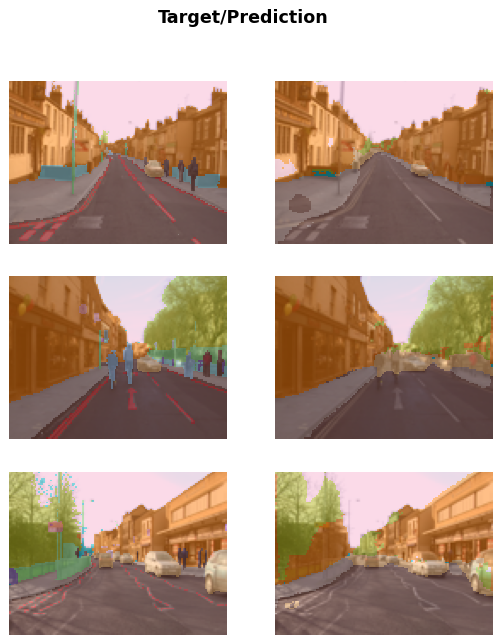
我們可以從執行結果觀察到以下情況:
- 隨著訓練進行,`train_loss` 和 `valid_loss` 逐漸下降。這表示模型正在學習從圖像中準確地進行分割。
- `train_loss` 通常會優於 `valid_loss`,因為模型通常在訓練數據上進行了更多次的更新,導致在訓練數據上的表現更好。
- 訓練時間 `time` 在每個訓練循環中是相對穩定的,但也可能因為硬體性能或其他因素而有些變化。
執行結果顯示模型的訓練過程,可以用來評估模型的訓練進度和性能。通過觀察訓練和驗證損失的變化,可以了解模型的收斂情況以及是否存在過擬合或欠擬合的現象。
### Tabular analysis - income prediction
```python
from fastai.tabular.all import *
path = untar_data(URLs.ADULT_SAMPLE)
dls = TabularDataLoaders.from_csv(path/'adult.csv', path=path, y_names="salary",
cat_names = ['workclass', 'education', 'marital-status', 'occupation', 'relationship', 'race'],
cont_names = ['age', 'fnlwgt', 'education-num'],
procs = [Categorify, FillMissing, Normalize])
```
這段程式碼使用 Fastai 中的 `TabularDataLoaders` 創建一個用於表格數據(Tabular Data)的數據加載器對象,用於分析和訓練表格數據。以下是這段程式碼的詳細說明:
1. `from fastai.tabular.all import *`: 導入 Fastai 中用於表格數據處理和分析的所有模組。
2. `path = untar_data(URLs.ADULT_SAMPLE)`: 下載並解壓縮了一個範例數據集(Adult Sample)。`path` 變數指向數據集的路徑。
3. `dls = TabularDataLoaders.from_csv(...)`: 使用 `from_csv` 創建一個表格數據加載器(`TabularDataLoaders`)對象。該數據加載器用於處理和訓練表格數據,參數包括:
這段程式碼創建了一個用於表格數據分析的數據加載器,並設定了類別特徵、連續特徵和數據預處理的處理器,以準備進行表格數據的特徵工程和模型訓練。這是一個基本的表格數據處理和建模示例。
```python
dls.show_batch()
```
| | workclass | education | marital-status | occupation | relationship | race | education-num\_na | age | fnlwgt | education-num | salary |
| --- | --- | --- | --- | --- | --- | --- | --- | --- | --- | --- | --- |
| 0 | Federal-gov | 11th | Never-married | Machine-op-inspct | Own-child | White | False | 18.000000 | 201685.999638 | 7.0 | \<50k |
| 1 | Self-emp-not-inc | Some-college | Married-civ-spouse | Craft-repair | Husband | White | False | 60.000000 | 88054.997875 | 10.0 | \<50k |
| 2 | Private | Bachelors | Married-civ-spouse | Prof-specialty | Husband | White | False | 36.000000 | 218489.998678 | 13.0 | \>=50k |
| 3 | Private | HS-grad | Divorced | Prof-specialty | Not-in-family | White | False | 44.000000 | 192878.000077 | 9.0 | \<50k |
| 4 | Private | 11th | Never-married | Handlers-cleaners | Own-child | White | False | 16.999999 | 198605.999833 | 7.0 | \<50k |
| 5 | Private | HS-grad | Married-civ-spouse | Tech-support | Wife | White | False | 33.000000 | 51471.004717 | 9.0 | \>=50k |
| 6 | Self-emp-inc | HS-grad | Married-civ-spouse | Exec-managerial | Husband | White | False | 57.999999 | 78104.003274 | 9.0 | \<50k |
| 7 | Private | HS-grad | Married-civ-spouse | Craft-repair | Husband | White | False | 23.000000 | 140413.999838 | 9.0 | \<50k |
| 8 | Private | Some-college | Married-civ-spouse | Prof-specialty | Wife | White | False | 51.000000 | 159604.000694 | 10.0 | \>=50k |
| 9 | Self-emp-inc | Bachelors | Married-civ-spouse | Exec-managerial | Husband | White | False | 78.000001 | 188043.999969 | 13.0 | \>=50k |
```python
learn = tabular_learner(dls, metrics=accuracy)
learn.fit_one_cycle(2)
```
| epoch | train\_loss | valid\_loss | accuracy | time |
| --- | --- | --- | --- | --- |
| 0 | 0.374738 | 0.353263 | 0.840756 | 00:07 |
| 1 | 0.362311 | 0.350406 | 0.841370 | 00:05 |
### Collaborative filtering - recommendation system
```python
from fastai.collab import *
path = untar_data(URLs.ML_SAMPLE)
dls = CollabDataLoaders.from_csv(path/'ratings.csv')
dls.show_batch()
```
| | userId | movieId | rating |
| --- | --- | --- | --- |
| 0 | 384 | 1196 | 5.0 |
| 1 | 134 | 1214 | 4.5 |
| 2 | 463 | 1732 | 3.0 |
| 3 | 598 | 3793 | 3.0 |
| 4 | 463 | 1580 | 4.0 |
| 5 | 547 | 736 | 3.0 |
| 6 | 30 | 4963 | 5.0 |
| 7 | 598 | 6377 | 4.5 |
| 8 | 358 | 2571 | 5.0 |
| 9 | 213 | 5952 | 4.0 |
```python
learn = collab_learner(dls, y_range=(0.5,5.5))
learn.fine_tune(10)
```
| epoch | train\_loss | valid\_loss | time |
| --- | --- | --- | --- |
| 0 | 1.519378 | 1.435194 | 00:00 |
| epoch | train\_loss | valid\_loss | time |
| --- | --- | --- | --- |
| 0 | 1.362469 | 1.376098 | 00:00 |
| 1 | 1.273202 | 1.189989 | 00:00 |
| 2 | 1.033413 | 0.865285 | 00:00 |
| 3 | 0.805937 | 0.715290 | 00:00 |
| 4 | 0.701935 | 0.678975 | 00:00 |
| 5 | 0.657022 | 0.668404 | 00:00 |
| 6 | 0.638030 | 0.663610 | 00:00 |
| 7 | 0.632279 | 0.661043 | 00:00 |
| 8 | 0.622865 | 0.660382 | 00:00 |
| 9 | 0.616491 | 0.660281 | 00:00 |
```python
learn.show_results()
```
| | userId | movieId | rating | rating\_pred |
| --- | --- | --- | --- | --- |
| 0 | 29.0 | 19.0 | 1.0 | 2.724875 |
| 1 | 67.0 | 7.0 | 3.0 | 3.395334 |
| 2 | 62.0 | 54.0 | 5.0 | 3.976421 |
| 3 | 2.0 | 44.0 | 2.5 | 3.066429 |
| 4 | 28.0 | 97.0 | 3.0 | 3.055727 |
| 5 | 75.0 | 5.0 | 4.0 | 3.711476 |
| 6 | 92.0 | 74.0 | 4.0 | 3.708967 |
| 7 | 30.0 | 45.0 | 5.0 | 4.391070 |
| 8 | 55.0 | 60.0 | 4.5 | 4.120734 |
* * *
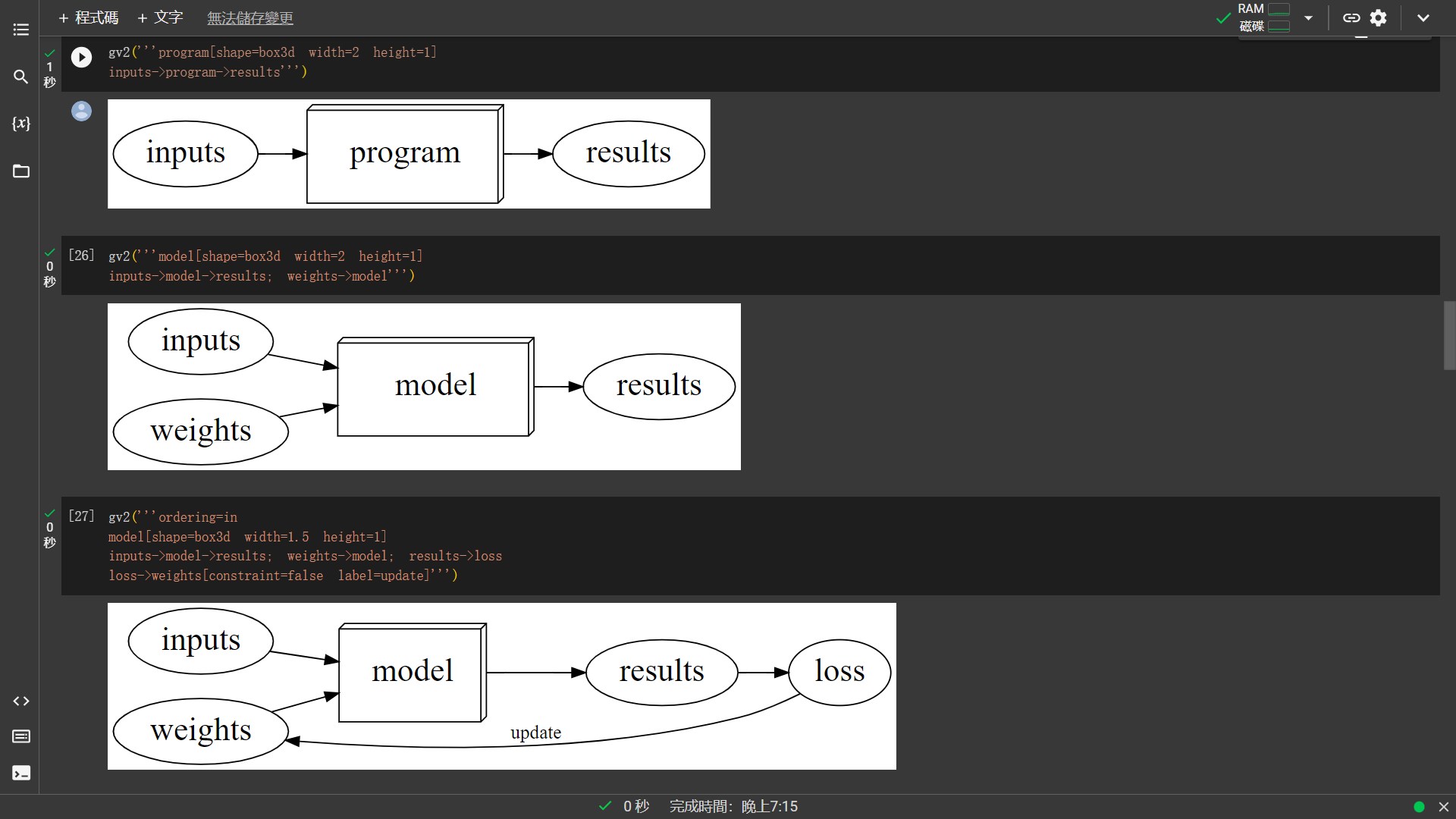
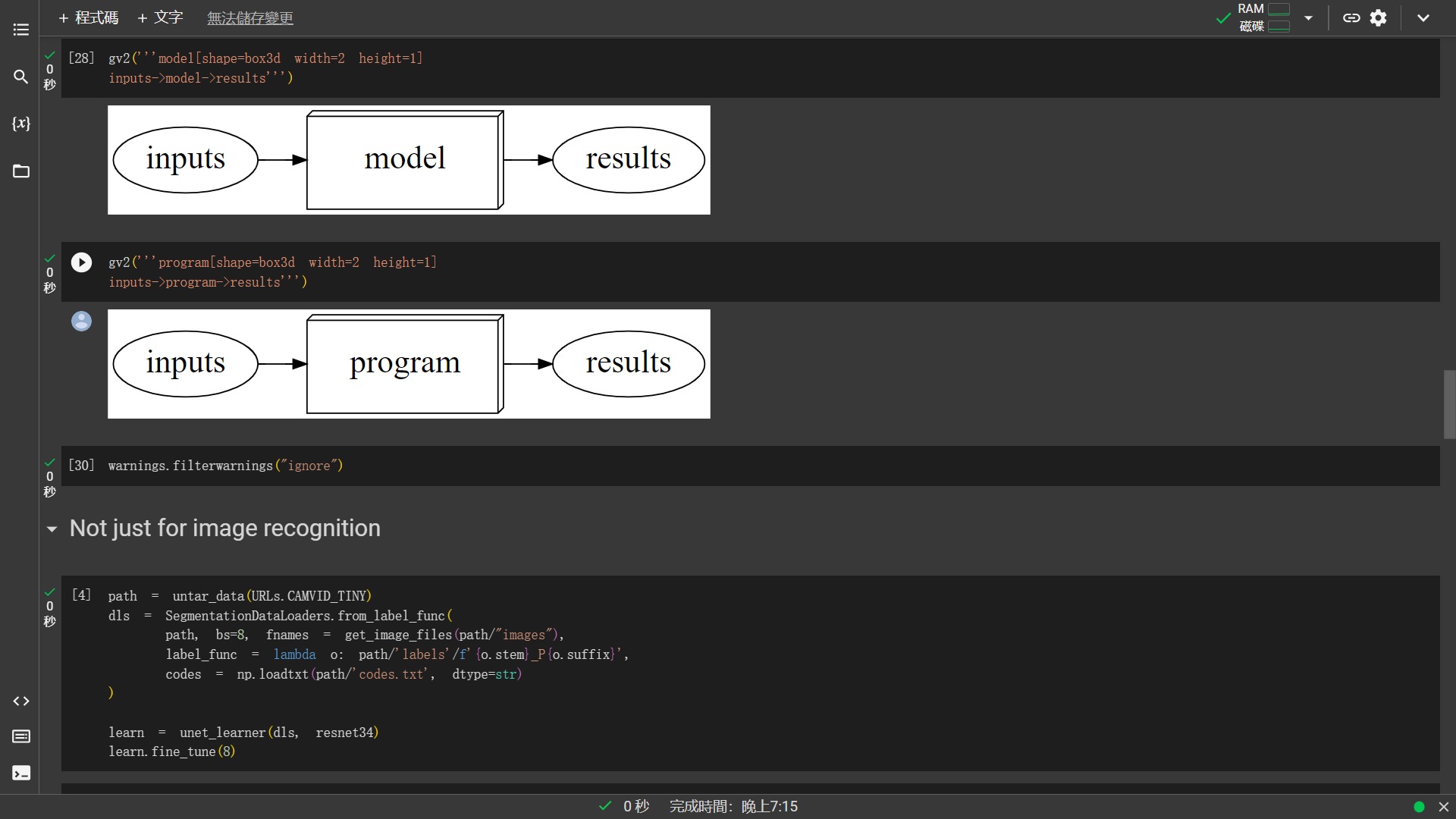
## What happened - A normal computer program
* * *
## 相關學習資源
- [Kaggle](https://course.fast.ai/Resources/kaggle.html) notebooks for this lesson:
- The fastai book:
- Repo containing [all lesson notebooks](https://github.com/fastai/course22)
- [**Solutions**](https://forums.fast.ai/t/fastbook-chapter-1-questionnaire-solutions-wiki/65647) to chapter 1 questions from the book
* * *
##
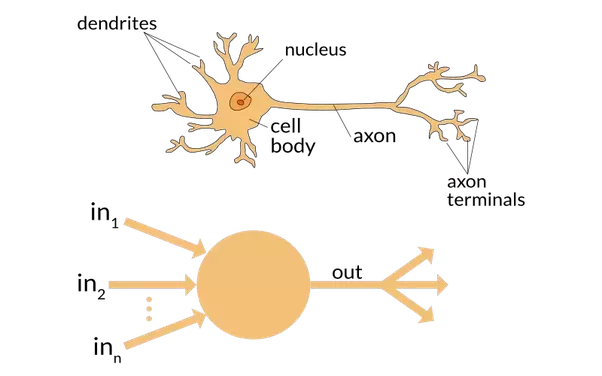
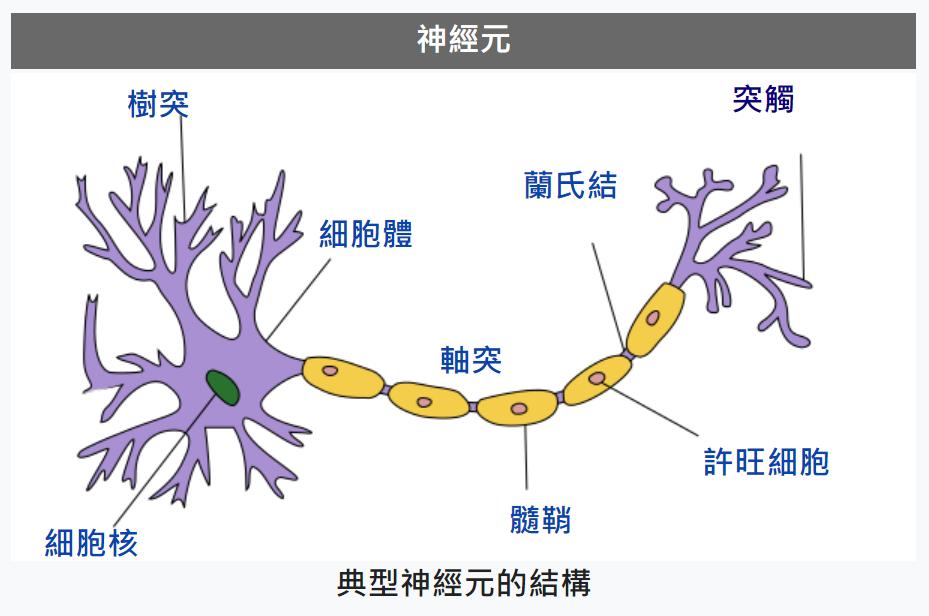
[Quasar Jarosz at English Wikipedia](https://commons.wikimedia.org/wiki/File:Neuron_Hand-tuned.svg), [CC BY-SA 3.0](https://creativecommons.org/licenses/by-sa/3.0), via Wikimedia Commons
* * *
## 課外補充
- How to learn - highly recommended books for fast.ai students
- Jupyter
- Fastai: A Layered API for Deep Learning paper: [Information Journal](https://www.mdpi.com/2078-2489/11/2/108) or [arxiv](https://arxiv.org/abs/2002.04688) or [fast.ai](https://www.fast.ai/2020/02/13/fastai-A-Layered-API-for-Deep-Learning/)
- [Dall-e 2 illustrations of Twitter bios](https://twitter.com/nickcammarata/status/1511861061988892675)
- [timm](https://timm.fast.ai/): PyTorch Image Models
* * *
## 論壇
- [Help: Setup](https://forums.fast.ai/t/help-setup/95289)
- [Help: Creating a dataset, and using Gradio / Spaces](https://forums.fast.ai/t/help-creating-a-dataset-and-using-gradio-spaces/96281)
- [Help: Using Colab or Kaggle](https://forums.fast.ai/t/help-using-colab-or-kaggle/96280)
- [Help: Python, git, bash, etc](https://forums.fast.ai/t/help-python-git-bash-etc/96282)
- [Help: SGD and Neural Net foundations](https://forums.fast.ai/t/help-sgd-and-neural-net-foundations/96286)
- [Help: Basics of fastai, PyTorch, numpy, etc](https://forums.fast.ai/t/help-basics-of-fastai-pytorch-numpy-etc/96285)
- [Help: Beginner questions that don’t fit elsewhere](https://forums.fast.ai/t/help-beginner-questions-that-dont-fit-elsewhere/96284)